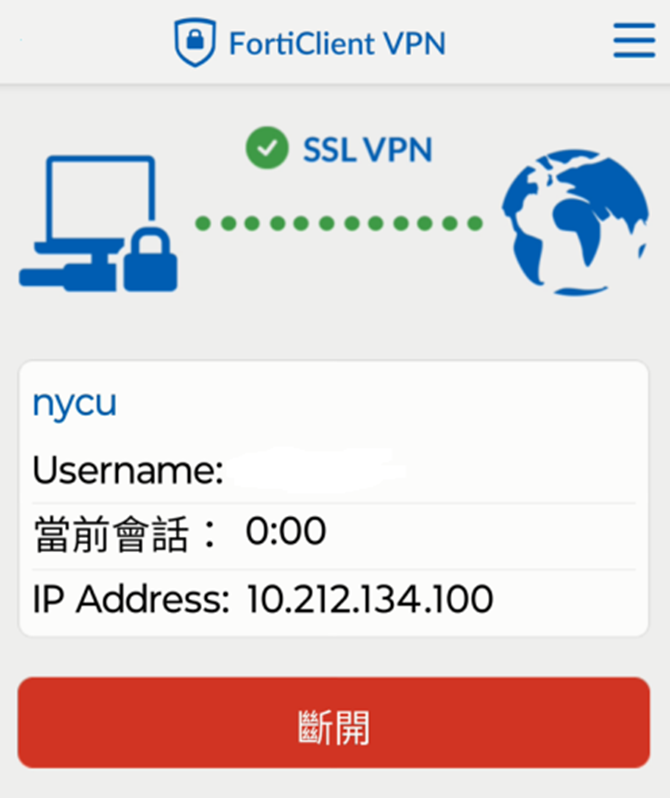

 中文
中文Install the SSL VPN client program (FortiClient VPN) if using for the first time by downloading the installation file provided.
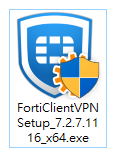
- Double-click FortiClientVPNSetup_7.2.7.1116_x64.exe to start the installation.
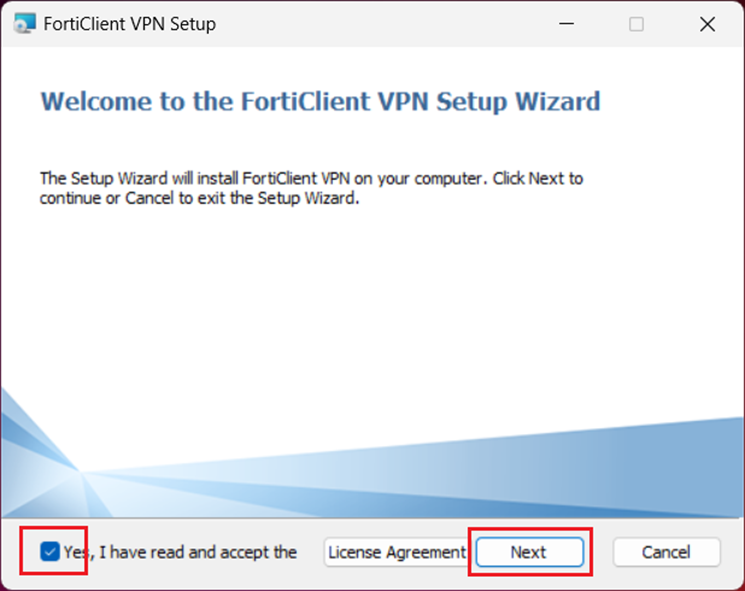
- Check "Yes, I have read and accept the terms," then click "[ Next ]."
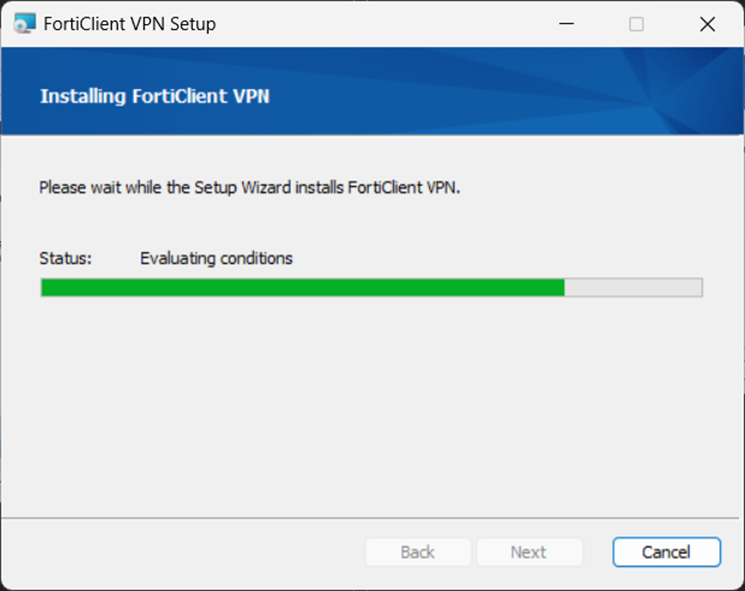
- Click [ Install ] to proceed with the installation.
![Click [ Install ] to proceed with the installation.](/userfiles/itch/images/20241113174959499.png)
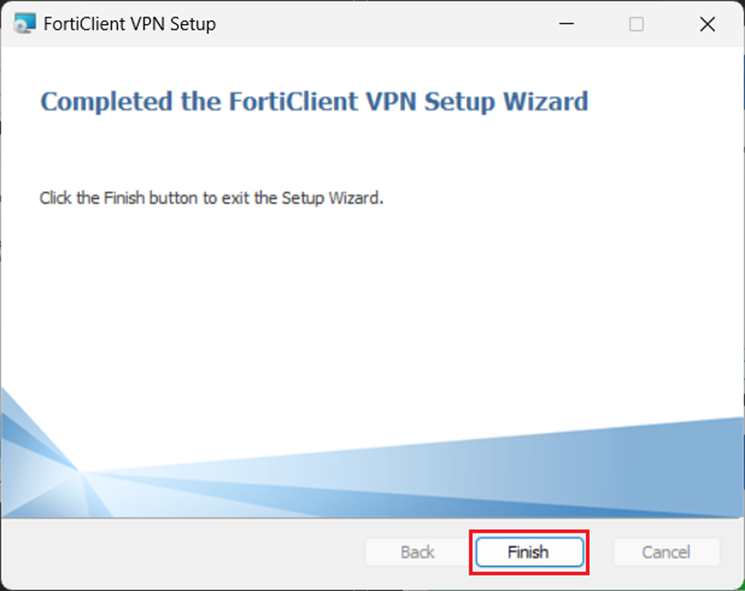
- After installation, a FortiClient VPN icon will appear on the desktop. Launch the “FortiClient VPN” program.
- Check "I acknowledge that this..." and click [ I accept ].
![I acknowledge that this... and click [ I accept ].](/userfiles/itch/images/20241113175116266.png)
- Click [Configure VPN].
![Click [Configure VPN].](/userfiles/itch/images/20241113175132280.png)
- Enter
- Connection Name:NYCU
- Remote Gateway:vpn.nycu.edu.tw
- After entering, click [ Save ].
![Enter Connection Name:NYCU, Remote Gateway:vpn.nycu.edu.tw, After entering, click [ Save ].](/userfiles/itch/images/20241113175336104.png)
- In the login screen, enter your NYCU single sign-on account and password, then click [ Connect ].
![In the login screen, enter your NYCU single sign-on account and password, then click [ Connect ].](/userfiles/itch/images/20241113175359711.png)
- For the Server Certificate Warning, click [ Yes ].
![For the Server Certificate Warning, click [ Yes ].](/userfiles/itch/images/20241113175420975.png)
- To disconnect from FortiClient VPN, click [ Disconnect ].
![To disconnect from FortiClient VPN, click [ Disconnect ].](/userfiles/itch/images/20241113175436927.png)
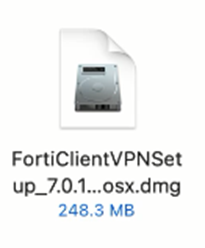
![Continue with the installation by clicking [ Install ].](/userfiles/itch/images/20241113180642676.png)
![Click [ Continue ].](/userfiles/itch/images/20241113180809079.png)
![Click [ Continue ]](/userfiles/itch/images/20241113180821823.png)
![Click [ Agree ].](/userfiles/itch/images/20241113180910106.png)
![Click [ Install ].](/userfiles/itch/images/20241113180933153.png)
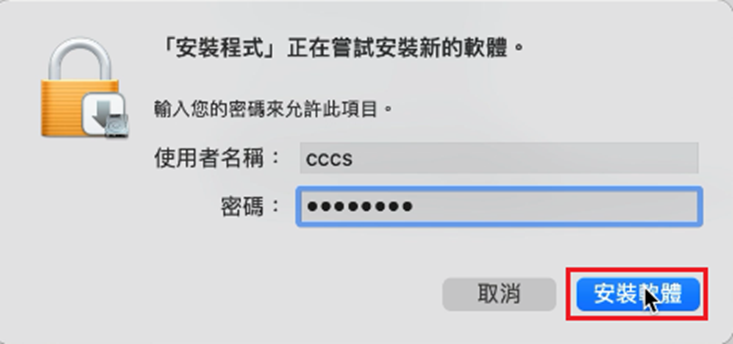
![When FortiTray requests to join VPN settings, click [ Allow ].](/userfiles/itch/images/20241113181028760.png)
![After successful installation, go to [ Applications ] and double-click to run FortiClient.](/userfiles/itch/images/20241113181106278.png)
![Check I acknowledge that this... and click [ I accept ].](/userfiles/itch/images/20241113181141782.png)
![Click [ Configure VPN ].](/userfiles/itch/images/20241113181211522.png)

![In the login screen, enter your NYCU single sign-on account and password then click [ Connect ].](/userfiles/itch/images/20241113181345743.png)
![For the Server Certificate Warning, click [ Yes ].](/userfiles/itch/images/20241113181412588.png)
![To disconnect from FortiClient VPN, click [Disconnect].](/userfiles/itch/images/20241113181441982.png)
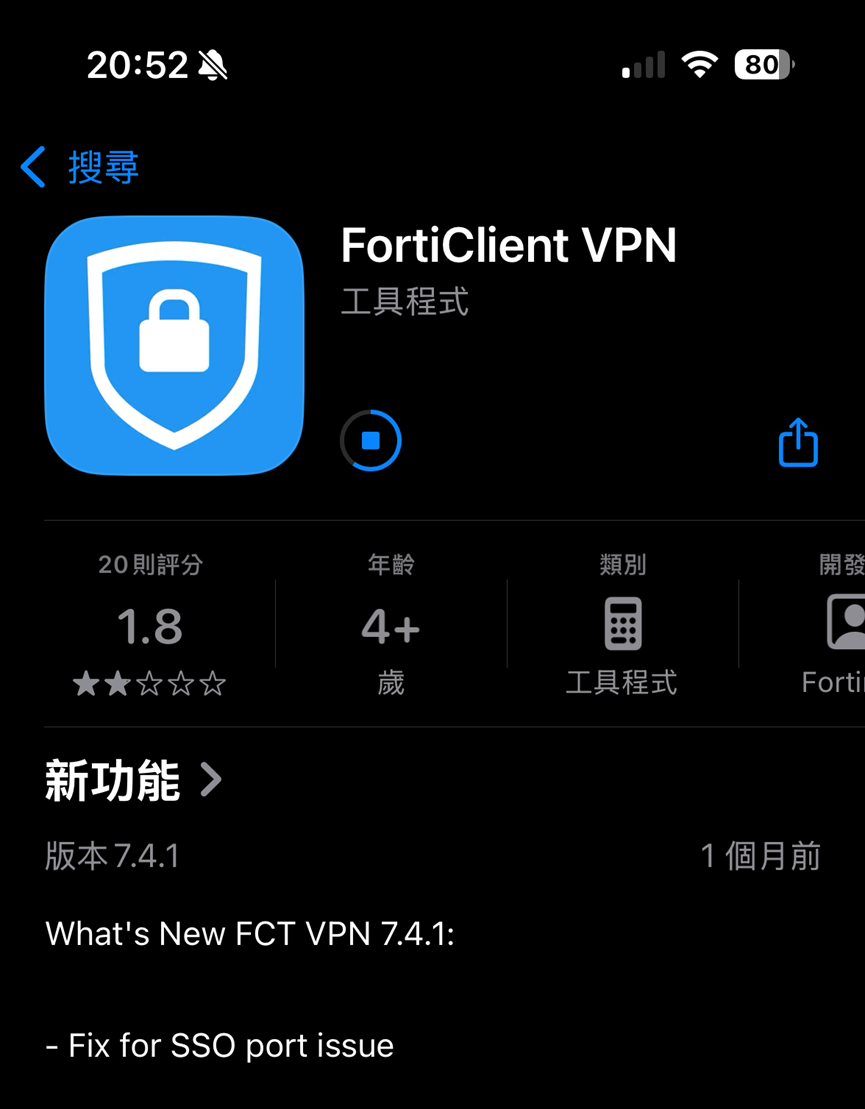
![When prompted that FortiClient VPN wants to add VPN configurations, tap [ Allow ].](/userfiles/itch/images/20241113181628042.png)
![Tap [ I accept ].](/userfiles/itch/images/20241113181905009.png)
![Tap [ Select Connection ] to enter the settings.](/userfiles/itch/images/20241113181924337.png)
![Tap [ Add Configuration ].](/userfiles/itch/images/20241113182013252.png)
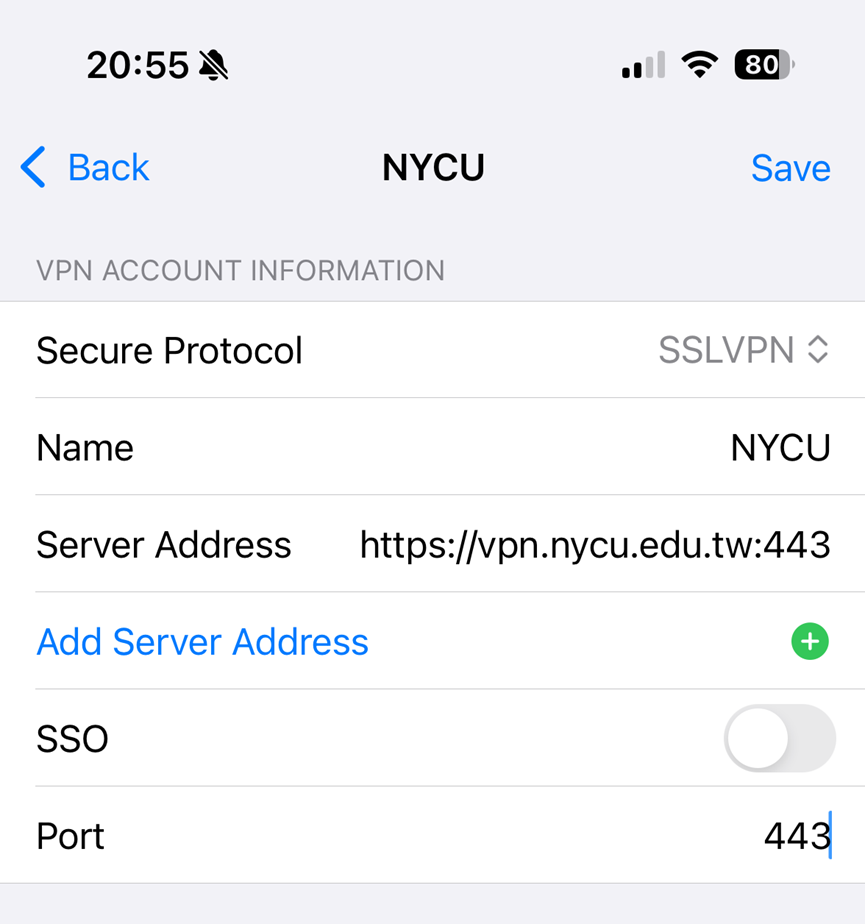
![Under USER VPN GATEWAY, select NYCU, then tap [VPN] to return.](/userfiles/itch/images/20241113182239438.png)
![Tap [ Connect ] to start the connection.](/userfiles/itch/images/20241113182305792.png)
![Tap [ OK ].](/userfiles/itch/images/20241113182337020.png)
![Enter your NYCU Portal account and password, then press [ OK ].](/userfiles/itch/images/20241113182415057.png)

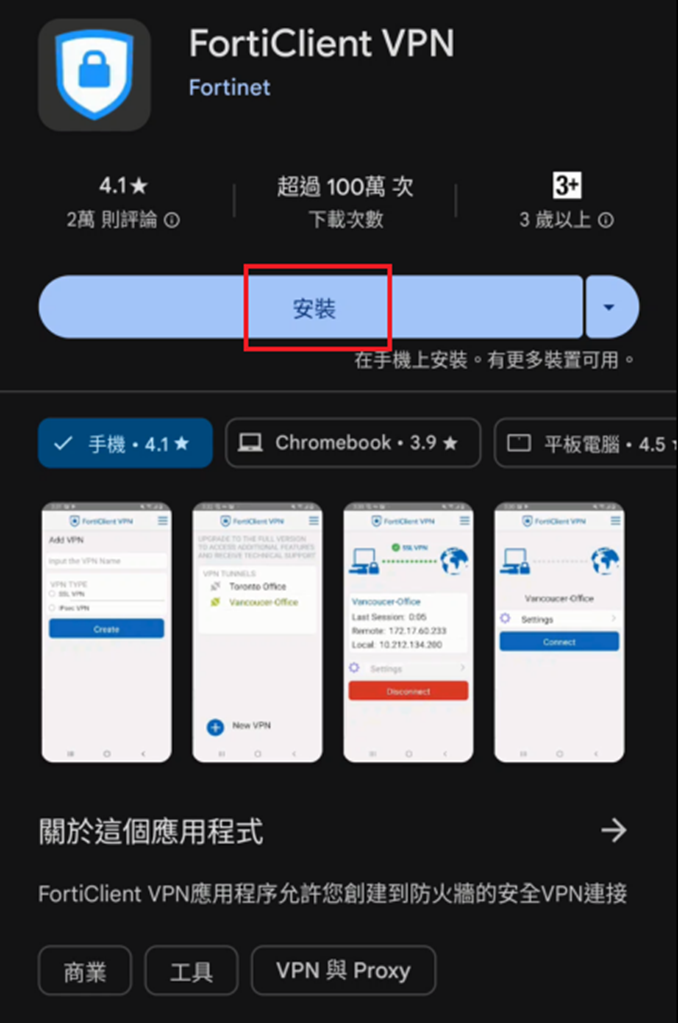
![When prompted with Welcome to Forti Client VPN and a request to add VPN settings, tap [ OK ].](/userfiles/itch/images/20241113194721176.png)
![Tap [ I ACCEPT ].](/userfiles/itch/images/20241113194841546.png)
![When prompted to grant permissions, tap [ OK ].](/userfiles/itch/images/20241113195440900.png)
![Tap [ ENABLE ].](/userfiles/itch/images/20241113195508040.png)
![Enter VPN Name as:>NYCU, select SSL VPN, then tap [ Create ].](/userfiles/itch/images/20241113195615201.png)
![Tap [ Servers ] to enter the settings.](/userfiles/itch/images/20241113195649586.png)
![Enter Server as: vpn.nycu.edu.tw, then tap [ OK].](/userfiles/itch/images/20241113195802693.png)
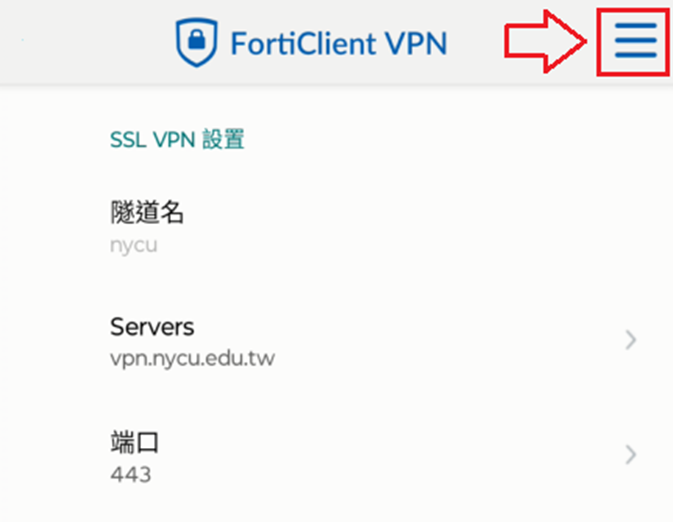
![Tap [VPN].](/userfiles/itch/images/20241113201509679.png)
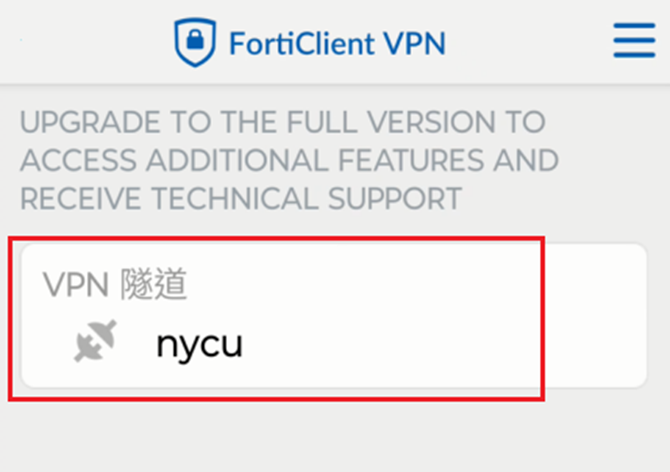
![Tap [ Connect ].](/userfiles/itch/images/20241113201929237.png)
![Enter your NYCU Portal account and password, then tap [ Login ].](/userfiles/itch/images/20241113202035073.png)
![Tap [ Continue ].](/userfiles/itch/images/20241113202206951.png)